CAMERA
1. What resolutions can the Osmo Action record in?
4K (16:9) – 60, 50, 48, 30, 25 and 24 fps
4K (4:3) – 30, 25 and 24 fps
2.7K (4:3) – 30, 25 and 24 fps
2.7K (16:9) – 60, 50, 48, 30, 25 and 24 fps
1080p – 240, 200, 120, 100, 60, 50, 48, 30, 25 and 24 fps
720p – 240 and 200 fps
2. What video formats can Osmo Action use?
MOV and MP4.
3. Can I see the remaining time and microSD card capacity while recording with the Osmo Action?
Yes. The remaining time will be shown in the top left corner of the screen during recording; the remaining microSD card capacity will be shown when taking a photo.
4. What is HDR video mode for?
You can use HDR video to improve image quality, recover detail, and display more color for a sharper video.
5. Can the Osmo Action correct distortion?
Yes.
6. Can I save the original Timelapse images?
Timelapse photos can be saved and viewed on a computer.
7. What is RockSteady?
Osmo Action uses RockSteady technology to stabilize video. This electronic stabilization technology increases shutter speed, analyzes the images captured by the CMOS sensor, and compensates for movement by cropping the image margins. This overlays and combines several frames into a single sharp, well-defined image with correct exposure.
8. Can I use HDR and RockSteady at the same time?
No.
9. Can I record slow motion videos with the Osmo Action?
Yes. The Osmo Action can shoot 8x slow motion video at 1080p / 240 fps
10. What is D-Cinelike?
D-Cinelike is a color profile designed to capture a wide dynamic range with the sensor. With it, colors are distributed evenly and results in low-light areas are greatly improved. It's a flat color profile, perfect for post-processing options.
11. How can I view saved photos and videos?
Method 1: Swipe right on the touchscreen to access the album.
Method 2: Connect to DJI Mimo and tap the album icon in the bottom right corner to view saved photos and videos.
12. How can I export photos and videos from the Osmo Action?
Method 1: Connect to DJI Mimo and download the content to your phone.
Method 2: Insert the Osmo Action's microSD card into a computer.
Method 3: Connect the Osmo Action to a computer with a USB-C cable.
13. Where are images stored on the Osmo Action?
Everything is saved on the microSD card.
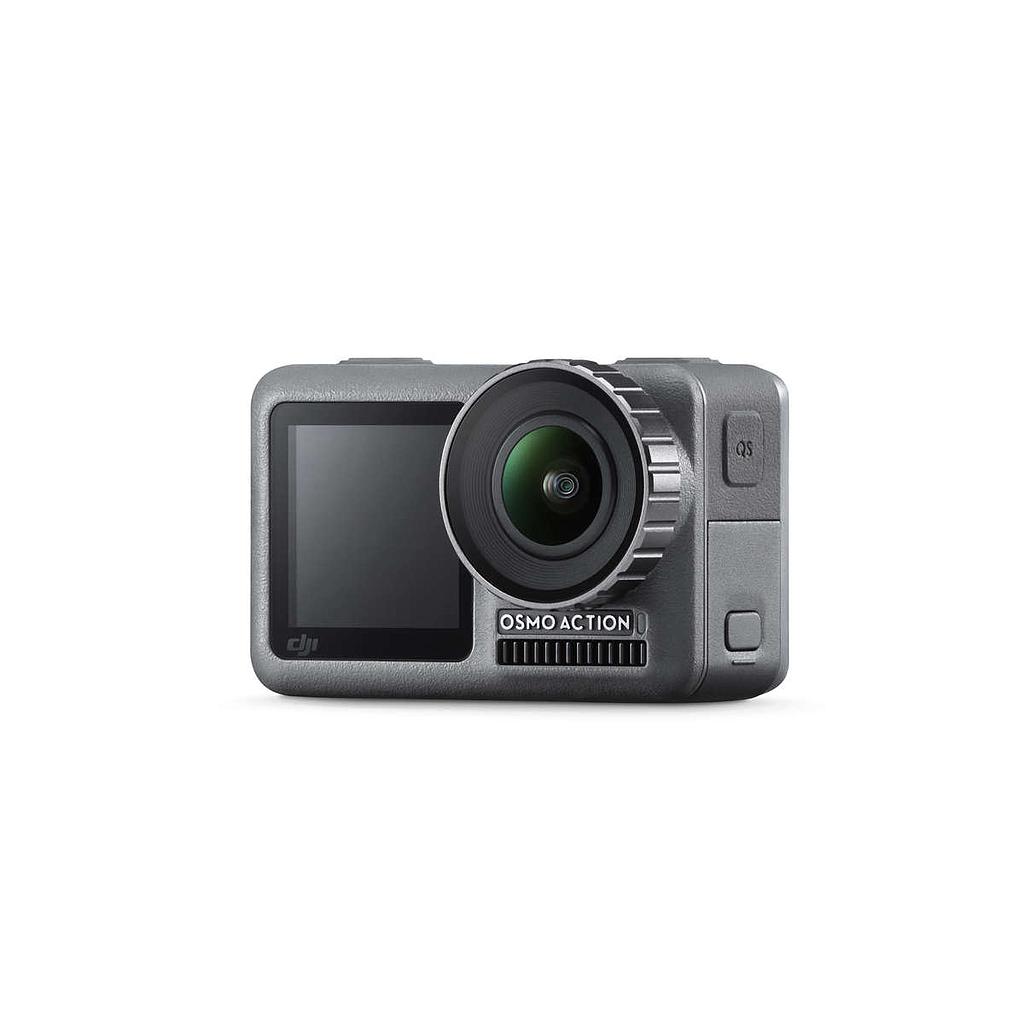
14. Does the Osmo Action have a fixed lens?
Yes. The fixed focal distance is 60 mm onward. From that distance to the subject, objects will appear in sharp focus.
15. Can I adjust metering on the Osmo Action?
Yes, the default option is spot metering. To select fixed metering, swipe down on the screen and open the metering function in the menu. After returning to the live view, press and hold on the metering area and tap the center of the metering box to lock it.
OPERATION
1. How do I control the Osmo Action with my phone?
The DJI Mimo app lets you control the Osmo Action and sync, edit, and share photos and videos.
2. How can I activate the Osmo Action?
1. Download the DJI Mimo app;
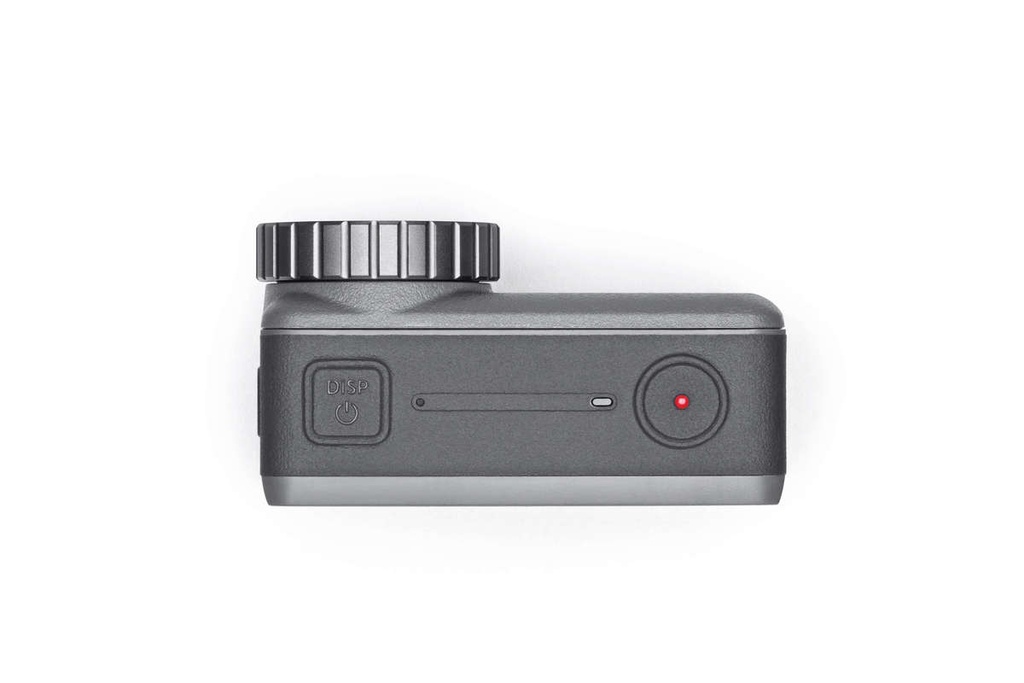
2. Press the power button to turn the device on or off;
3. Enable Wi-Fi and Bluetooth connectivity on your phone, launch the DJI Mimo app, tap the camera icon in the upper left corner, and connect to the Osmo Action;
4. After connecting the Osmo Action to the app, you will be prompted to activate the device:
5. Follow the steps shown in the app to complete the activation process.
3. How do I update the Osmo Action firmware?
The DJI Mimo app will automatically send notifications. Follow them to complete the update process.
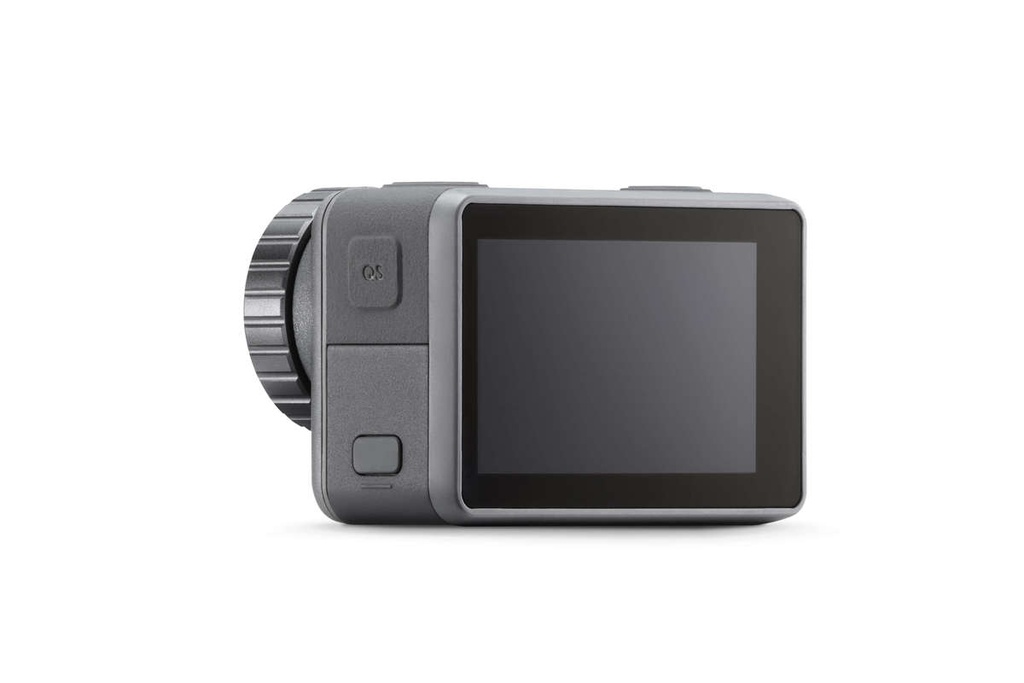
4. How do I switch between the front and rear screens?
Method 1: Double-tap the screen on the main interface of the rear screen with two fingers, or press and hold the QS button.
Method 2: In the DJI Mimo app, go to the camera view and tap “switch screens.”
Method 3: Enable voice control and say “screen switch.”
5. Can the front screen be used to control the camera?
No. The front screen is for viewing only.
6. How do I switch to portrait mode?
In photo mode, rotate the Osmo Action 90º and the system will automatically switch to portrait mode.
7. What is custom mode?
You can save configuration details as a mode to select later. You can save up to five custom modes.
8. What is the benefit of automatic screen sleep?
You can set the device to automatically enter sleep mode to save power, with a minimum time of 1 minute.
9. Can the Osmo Action be voice controlled?
Yes. Osmo Action voice commands are available in English and Mandarin Chinese.
10. What does the QS button do?
Press the QS button while in camera view to quickly switch between your most-used modes. Tap “...” to choose modes and add them to the QS interface. In the settings or playback screen, press the QS button to return to camera view. Press and hold the QS button to switch between the two screens. Video recording will stop and restart if you switch screens while recording.
11. Why does the Osmo Action have a screen lock feature?
The screen lock feature prevents you from changing anything if you accidentally touch the touchscreen.
12. How do I share videos shot with the Osmo Action?
You can save the videos to your phone first or use DJI Mimo to upload them online and share the generated links.
13. How can I manually set shutter speed, ISO, and other camera parameters?
Method 1: Enter camera view and swipe left on the touchscreen to access camera settings. There, choose manual mode (M).
Method 2: Connect to the DJI Mimo app and tap Settings on the left side of the camera view.
14. Does the Osmo Action have a sleep mode?
Yes.
15. Where is the Osmo Action's microphone located?
Osmo Action has two built-in microphones. One on the top and another on the left side of the camera.
16. Can I use an external microphone with the Osmo Action?
Yes. You can connect the Osmo Action to a third-party microphone via the USB-C port using a 3.5 mm adapter.
17. Can I change the playback volume?
Yes.
BATTERY
1. How long do Osmo Action batteries last?
With a full charge you can record: approximately 135 minutes of 1080p video at 30 fps (with RockSteady disabled); approximately 63 minutes of 4K video at 60 fps (with RockSteady enabled).
2. Does the Osmo Action support fast charging?
No.
3. How long does it take to fully charge an Osmo Action battery?
It takes approximately 90 minutes to fully charge the battery.
OTHERS
1. Can the Osmo Action be disassembled?
Only the battery, the lens filter cap and the USB-C cover can be removed. However, these parts must be correctly mounted before submerging the Osmo Action underwater.
2. Can the Osmo Action's lens filter cap be swapped?
Yes. Turn the cap to remove it from the Osmo Action and swap it for another one or for an ND filter.
3. Can the Osmo Action connect via Wi-Fi or Bluetooth?
Yes. The device can connect to both Bluetooth and Wi-Fi.
4. Can the Osmo Action be mounted on a tripod?
Yes. The Osmo Action's camera mount can be mounted on a base or a tripod.
5. Is the Osmo Action waterproof?
Yes. The Osmo Action can be submerged up to 11 m on its own, and up to 60 m with the waterproof housing.
6. What do I need to do before using the Osmo Action underwater?
Insert the battery, fit the lens filter cap and close the USB-C cover before using the Osmo Action underwater. Otherwise water could get into the device.
1. Check that there is nothing in the battery or the battery compartment, that it is correctly inserted and that both battery locks are grey, with no orange part visible.
2. Check that the USB-C cover is fully closed.
3. Check that the lens filter cap is intact and correctly fitted; replace it if damaged.
4. Osmo Action is submersible up to 11 metres deep. If used with a waterproof housing, it can be submerged up to 60 metres deep.
5. Do not jump into water with the Osmo Action.
6. Do not use the Osmo Action in hot springs.
7. Rinse the Osmo Action with clean water after taking it out of other liquids and let it air dry naturally.
7. What do I need to do if the Osmo Action is damaged by water?
1. Take the Osmo Action out of the water immediately and remove the battery;
2. Dry the camera's surface with a clean, soft cloth. Pay special attention to the battery compartment, the microSD card slot, the ports and any crevices;
3. If the camera shows serious damage, contact DJI's after-sales service for repair.
8. Which microSD cards are compatible with the Osmo Action?
The Osmo Action is compatible with microSD cards with a capacity of 256 GB and up.
Recommended models:
Samsung EVO Plus 32GB UHS-1 microSDHC
Samsung Pro 64GB UHS-3 microSDXC
Samsung Pro Endurance 64GB UHS-1 microSDXC
Samsung Evo Plus 64GB UHS-3 microSDXC
Sandisk Extreme 16/32GB UHS-3 microSDHC
Sandisk Extreme Plus 128GB V30 A1 UHS-3 microSDXC
Sandisk Extreme Pro 64GB V30 A1 UHS-3 microSDXC
Lexar 633X 32GB UHS-1 microSDHC
It is also compatible with cards from other major brands with a minimum write speed of 30 MB/s.
9. What accessories does the Osmo Action have?
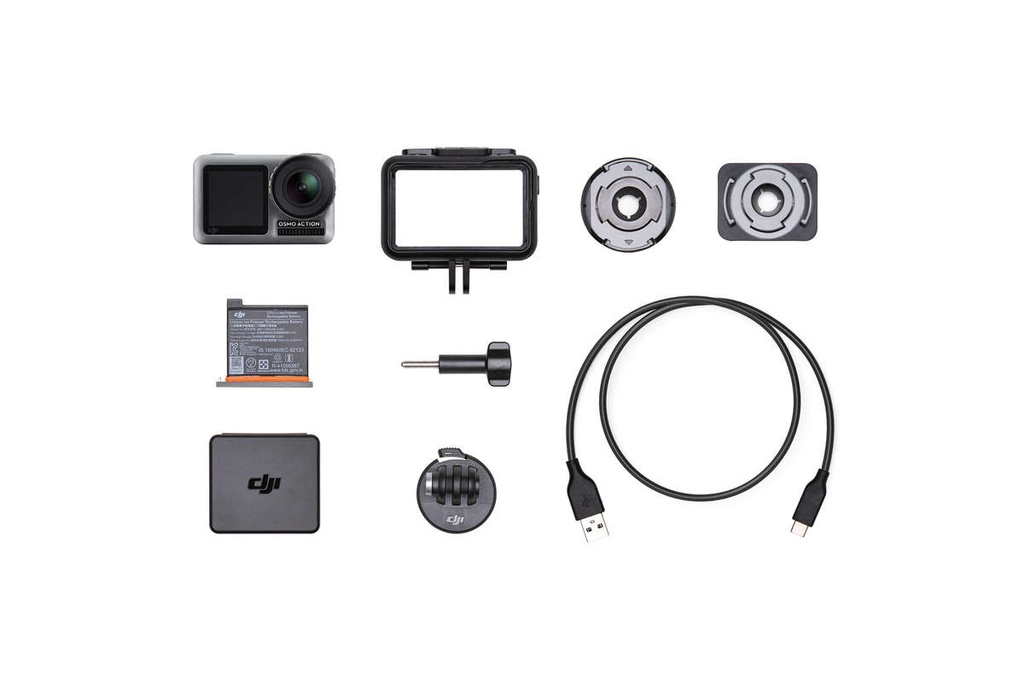
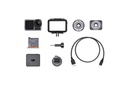
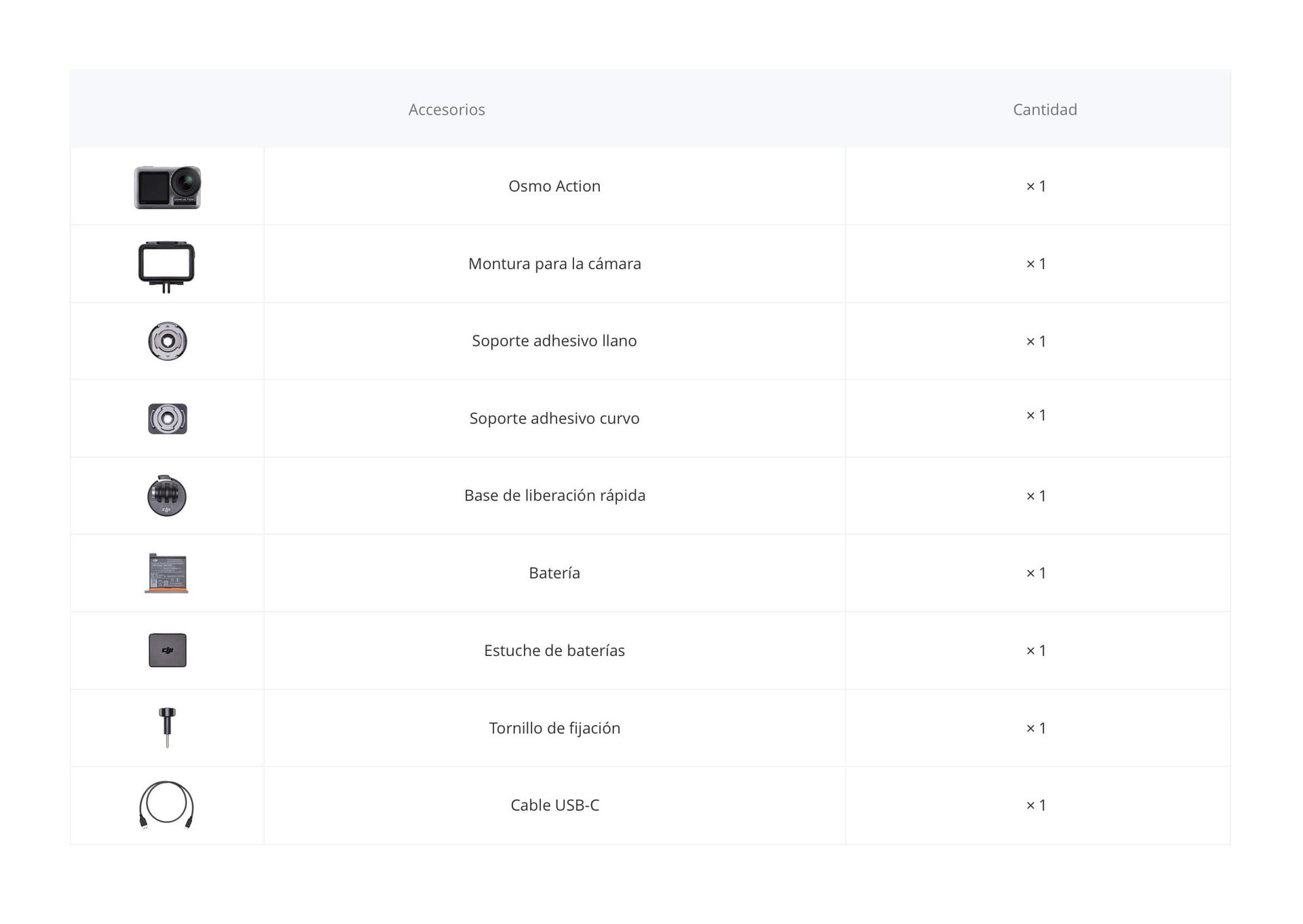
Osmo Action is compatible with the waterproof housing, the camera mount, the quick-release base, the locking screw, the flat adhesive mount and the curved adhesive mount, among others. For more information, please visit the DJI Online Store.
10. How do I mount different accessories on the Osmo Action?
You can use the universal port on the bottom of the camera mount and a threaded rod to mount common accessories for this type of camera. You can use the quick-release base to attach the Osmo Action to official DJI accessories.
11. How do I clean the lens and filter cap?
1. You can clean dirt off the lens with a clean cloth. To clean dust from the slits at the edge of the lens, use a dust blower or a cotton swab.
2. To clean water marks, oil stains, or fingerprints from the lens, apply a few drops of cleaning solution to a lens cloth and clean in a circular motion. Close the cap once the lens is completely dry.
3. The inner part of the filter cap can be cleaned with a cotton swab.
12. What should I do if dust or sand gets into the Osmo Action?
The Osmo Action is dust-resistant. However, if dust gets into the device and cannot be cleaned, please contact DJI after-sales service.





 and then Add to Home Screen.
